Digital Accessibility Toolkit
Introduction
It is critical to ensure that everyone is able to access important web content, publications, and documentation quickly, easily, independently, privately, and equally. DEM is committed to ensuring all digital offerings across the Division are fully accessible and free from barriers for all individuals. Digital accessibility represents an important opportunity to further advance the DEM’s culture of belonging both for team members as well as for those DEM serves and interact with. The work to ensure digital accessibility through all digital interactions will be guided by federal accessibility standards and campus best practices.
This toolkit is intended to detail DEM-specific digital accessibility standards and references many of the resources, guides, and best practices provided in the Division of Information Technology (DoIT) Make it Accessible website.
Everyday Digital Accessibility Standards, Best Practices, & Resources
DEM team members are expected to follow best practices to ensure accessibility across different communication methods.
Documents
All DEM team members are expected to be aware of best practices to ensure accessibility when utilizing Microsoft Excel, Word & PowerPoint, Google Documents & Slides, PDF files, internal information sharing such as KB’s or Confluence.
Emails
All DEM team members are expected to ensure that email communications are easy to read, understand, and interact with.
Images and Multimedia
All DEM team members are expected to utilize captions, transcripts, and audio descriptions on any images, videos, infographics or other multimedia content.
Events, Meetings & Presentations
All DEM team members are expected to follow best practices to optimize inclusion and access for all modalities (virtual, hybrid, and in-person) of any meeting, event, or presentation.
Find what you were looking for?
If you need more assistance, DEM Shared Services is happy to help.
Best Practices
Best Practices
- Body font should be at least 12 pt (16 pixels) in size
- Use plain, preferably sans serif fonts for paragraph text
- Make sure to use proper heading structures and do not skip heading levels
- Avoid jargon and acronyms in writing
- Utilize plain language
- Do not use all capital letters except for acronyms
- For links or buttons, avoid using “click here,” rather describe the destination or what will happen when they click the link
- Utilize a short, clear, and concise subject line that is unique to your email
- Scanned images of text or screenshots are not accessible (including if used for training purposes) unless they include alternative text that describes the image’s purpose and context, not just its contents
- Utilize the PDF accessibility checker and correct any identified issues
- Images in a PDF without appropriate alternative text are not accessible (in some cases, an image may need to be re-produced utilizing an accessible document in order to ensure it is accessible in a PDF)
- Utilize the Adobe’s guide on PDF accessibility to help understand the tools imbedded within PDF’s to make them accessible
- For web-based documents such as KB’s or Confluence or training materials in Canvas, web & document accessibility must be considered – reference the KnowledgeBase Accessibility or Accessible Courses (Canvas)
Best Practices
- All images, graphs, icons, charts, and illustrations should include detailed alternative text that describes the image’s purpose and context, not just its contents; reference accessibility of complex images for more guidance
- Avoid relying on color to convey information
- Don’t use images of text, which might pixelate
- Avoid using images behind text because it can be distracting and make the text more difficult to read
- Use good contrast in colors and utilize a color contrast checker when possible
- When writing alternative text, provide enough information for users to enjoy the image and act on the information it provides, avoiding words such as “photo of” or “screenshot of”
- Anything that you can visually see someone else should be able to verbally hear (often via a screen reader)
- Use tools such as Colorsafe to create an accessible color palette
- Use a simulator such as Coblis to see what your color scheme might look like to someone who is colorblind
Best Practices
- All video (live or recorded) should have captioning
- Ensure all event information and content are accessible (following document, email, and presentation accessibility best practices)
- Ensure high-color contrast, use plain language, and ensure a text equivalent to all visual content
- Use a microphone (and avoid asking the audience “can you hear me”)
- Describe the information on each slide making sure to verbalize the visual information
- Describe other visual information about the space out loud, especially in interactions with the audience during a presentation (ex. “it looks like we have quite a few people are raised their hand to agree with that statement”)
- Virtual backgrounds can be less accessible to attendees
- During a Q&A session, be sure to repeat the question for all to hear before answering
- When hosting a hybrid meeting, ensure both in-person and virtual attendees are able to engage and remember to address both audiences as equal participants within the space
Resources
How To Check Accessibility
Use the desktop versions of each Microsoft application for this process, as some accessibility issues cannot be fixed in a web browser using the guided accessibility checker.
You can access Microsoft’s built-in accessibility checker in any Word document, PowerPoint presentation, or Excel spreadsheet. With any file open, select Review in the ribbon at the top, then select Check Accessibility. The accessibility checker will open in a panel on the right.
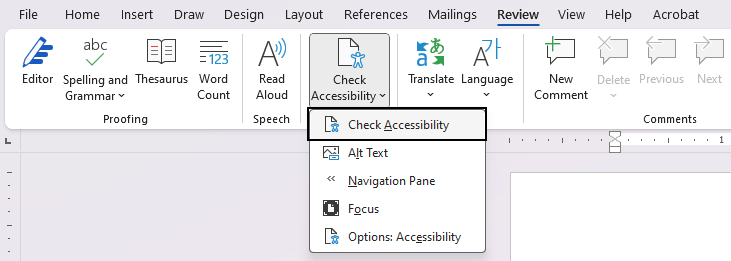
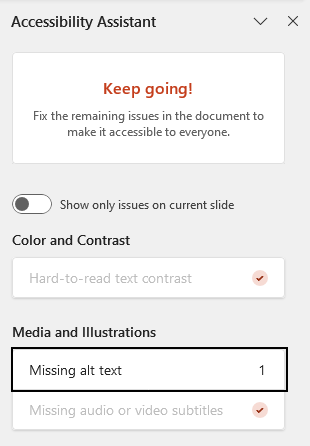
The checker will list accessibility issues and warnings in the following categories: Color and Contrast, Media and Illustrations, Tables, Document Structure, and Document Access. PowerPoint’s accessibility checker also checks for slide titles and logical reading order.
When the checker does not find issues, a checkmark will appear beside each issue type that was scanned.
Click directly on the issues the checker finds (for example, “Missing alt text”) and you will be guided through the process of fixing it (for example, adding alt text or marking the image as decorative).
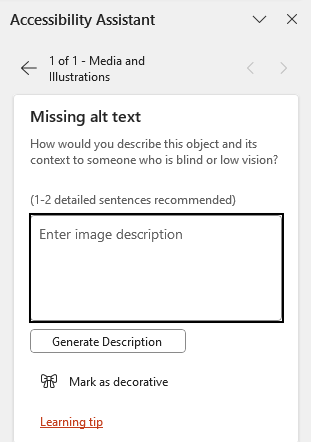
For more information, read Microsoft Support’s Improve accessibility with the Accessibility Checker guide and WebAIM’s Word and PowerPoint Accessibility Evaluation Guide.
Check your Google Docs, Slides, and Sheets for accessibility using Grackle, a suite of extensions that are available to all of UW–Madison at no cost.
To install Grackle, make sure you are signed in to Google with a UW–Madison account. We recommend using a Chrome profile to avoid being asked to sign in to Grackle every time you open your browser.
When you are signed in, open any Google Doc and follow these steps:
- Navigate to Extensions in the document’s menu bar.
- Select Add-ons, then Get Add-ons.
- Search for “Grackle” in the Google Workspace marketplace. Grackle Docs should be the first extension in the search results.
- Install and launch Grackle Docs.
- Repeat this process for Google Slides and Google Sheets. The Grackle add-ons are called Grackle Slides and Grackle Sheets, respectively, in the Google Workspace marketplace.
Once Grackle is installed, you can launch it anytime by navigating to Extensions. When launched, the accessibility checker will open in a panel on the right.

For Google Docs, the checker will list accessibility issues and warnings in the following categories: Document, Images, Headings, Tables, Landmarks, and Contents. The categories vary slightly for Slides and Sheets.
A green checkmark will appear beside each issue type when the checker does not find an issue. You can select any issue to expand it and read more details on what was checked.
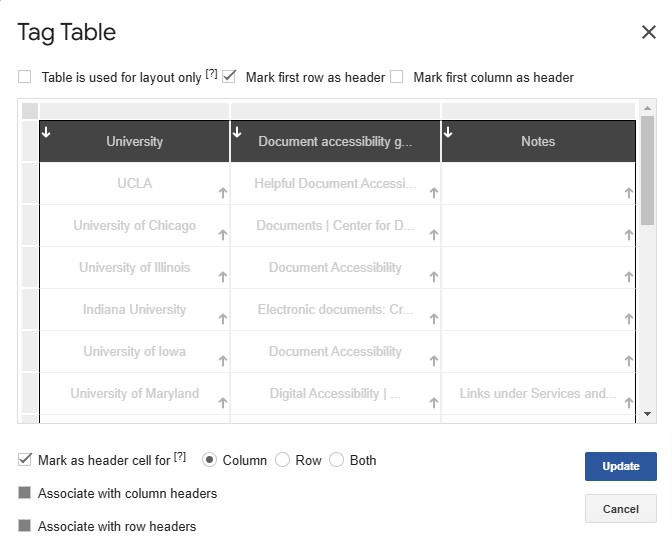
A red X will appear beside each issue type that requires review. Click on the action buttons below the issue description (for example, “Tag” if the issue is an untagged table) and you will be guided through the process of fixing the issue.
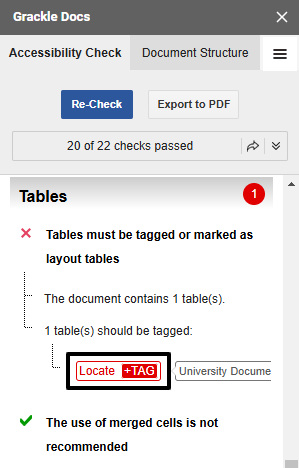
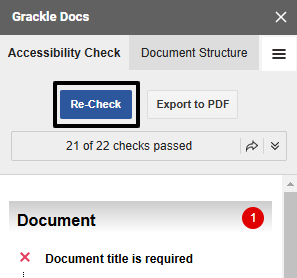
Select “Re-Check” at the top of the panel to refresh the results after fixing an issue.
For more information, read UC Berkeley’s step-by-step guides for Grackle Docs, Grackle Slides, and Grackle Sheets.
Accessible source documents
When creating PDFs, begin with an accessible source document whenever possible. “Source document” refers to the original document from which the PDF was exported. Common sources are word processing applications, such as Microsoft Word or Google Docs, and page layout applications such as Adobe InDesign. For accessibility resources and tips on using these applications, review the Document accessibility guide.
If the source document is accessible, most documents created in Microsoft applications will be tagged properly when exported to PDF.
When creating a PDF from a Google Doc or Slides presentation, use Grackle to check your document for accessibility and select the “Export to PDF” button to generate a tagged PDF.
Across all applications, “Print to PDF” does not generate a tagged PDF, so please do not use this option unless you are creating a PDF that is for print use only.
Acrobat accessibility checker
Before sharing any PDF for online use, run Adobe Acrobat’s built-in accessibility checker.
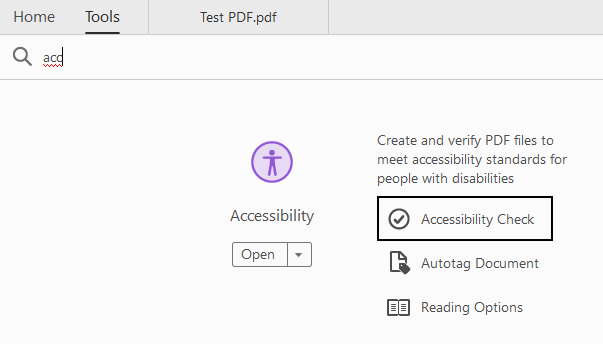
Open any PDF with Acrobat Pro and select Accessibility from the Tools panel, then select Accessibility Check. (If you do not have Accessibility in your Tools panel already, you can search for it in the Tools tab and open Accessibility Check from there.)
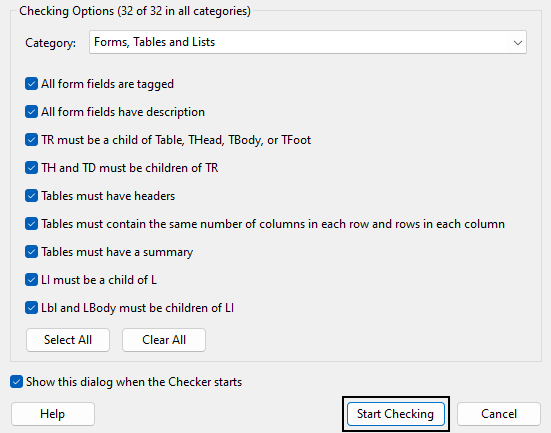
In the Accessibility Checker Options dialog that appears, ensure all options are checked, then select Start Checking. The accessibility checker will open in a panel on the side.
The checker will list accessibility issues and warnings in the following categories: Document, Page Content, Forms, Alternate Text, Tables, Lists, and Headings.
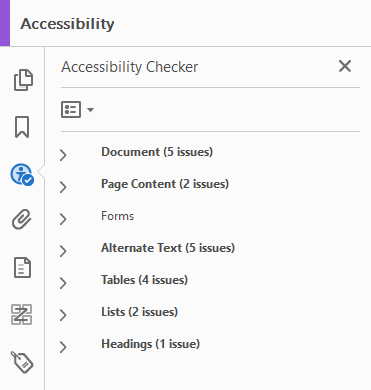
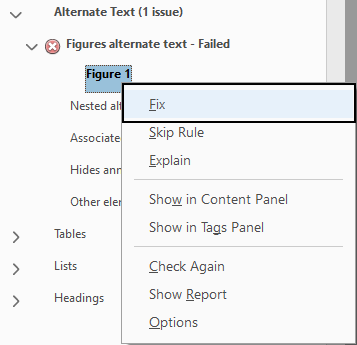
If issues have been found, the affected categories will appear in bold text with the number of issues found in parentheses. To address each issue, expand the category and then right-click on the issue to Fix it through Acrobat’s guided process. If the Fix option is not available, select Explain to open an Adobe help page where you can read more about the issue and learn how to fix it manually.
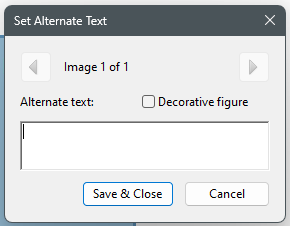
Some issues may affect multiple elements throughout the document. For example, images that are missing alt text will be flagged as a single issue, “Figures alternate text,” even if there are multiple images with this issue. To resolve, expand the issue and fix the affected elements one by one.
If no issues are found, the list in the Accessibility Check panel will appear without bold text calling out the number of issues — except for the Document category, which always requires manual checks for color contrast and logical reading order.
To learn more about making PDFs accessible, take the LinkedIn Learning course Creating Accessible PDFs. The course includes guidance on how to create accessible source documents before exporting to PDF, and how to remediate a PDF for accessibility if you do not have access to edit the source document.
Advocacy
We want to continue improving our culture of belonging at DEM. What does that look like in action? We learn continuously about digital accessibility and its ever-evolving tools. We approach our work through the lens of accessibility by default. We practice making our work accessible every day. We cultivate an environment where it is safe to make mistakes and to learn; and where you are empowered to improve accessibility within the division. Accessibility is a proactive and deliberate practice. We are all responsible. We are all learning.
- Keep learning and expanding your knowledge of accessibility issues, tools, and resources.
- Actively contribute to advancing learning and the use of best practices by asking questions and modeling digitally accessible practices.
- Practice making your work accessible every day! Start with your next email.
- Don’t be afraid of making mistakes; no one is perfect! If we make a mistake, seek to understand how you can correct it for next time and prioritize making any changes moving forward.
- Help others by sharing your own experiences and speaking up when something can be made accessible.
- “Hey, I noticed that your image in the newsletter didn’t have alt text. It’s hard for me to remember too, so I just want to bring it to your attention so our newsletter can be accessible for everyone. If you aren’t sure how, here’s a resource.
Functional Digital Accessibility Standards, Best Practices, & Resources
Web Content Accessibility
DEM communication leads are responsible for ensuring web content, including websites, video, audio, digital publications, and social media meet Web Content Accessibility Guidelines (WCAG) 2.2 AA standards.
Technology Tools Accessibility
DEM technology leads are responsible for ensuring all vendor or other technology solutions meet Web Content Accessibility Guidelines (WCAG) 2.2 AA standards and are otherwise fully accessible to people with disabilities, to the best of our ability.
Data Visualization Accessibility
DEM data leads are responsible for ensuring data graphics and visualizations follow industry best practices to ensure fully accessible information to the best of our ability.
Learning Opportunities
DEM Opportunities
No upcoming events found.
Campus Wide Opportunities
October
-
October 26
November
-
November 16
December
-
December 14
Other Opportunities
No upcoming events found.
Digital Accessibility Liaisons
Digital accessibility liaisons can share the university’s digital accessibility resources or other accessibility information with you. Here are DEM’s digital accessibility leads:
- Office of Admissions and Recruitment: Ellen Clark
- Office of Student Financial Aid & SSTAR Lab: Karla Weber Wandel
- Office of the Registrar: Logan Reigstad
- Office of the Vice Provost: Justin Mumford
Communications team members have accessible templates for a variety of digital content that you may be able to use to take the guesswork out of creating an accessible document! Here are DEM’s communication leads:
- Office of Admissions and Recruitment: Greer Davis
- Office of Student Financial Aid: Karla Weber Wandel
- Office of the Registrar: Logan Reigstad